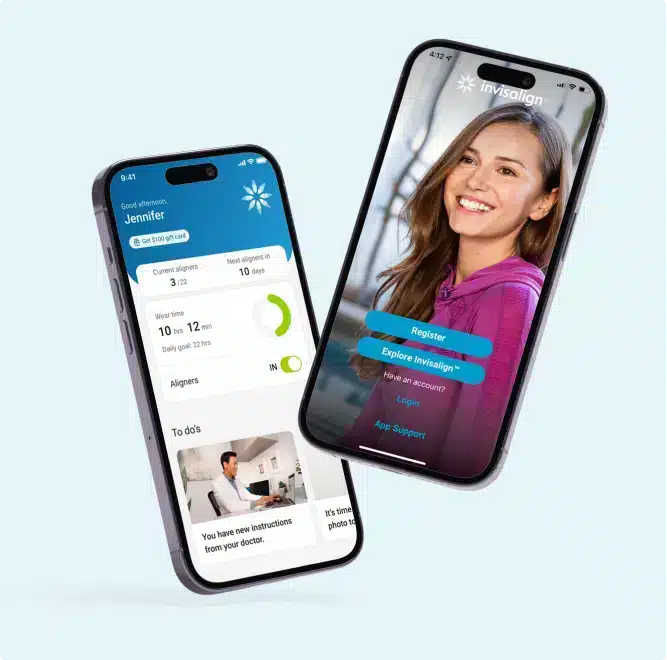

My Invisalign App: How to Use Virtual Care

Stay Connected. Stay On Track. Stay Confident.

The My Invisalign App makes your smile journey easier, more convenient, and more connected than ever. With Invisalign Virtual Care, you can share progress photos, receive doctor feedback, and stay on track between in-office appointments — all from your phone.

Why Use the My Invisalign App?

  • Stay connected with your Invisalign doctor


  • Get real-time feedback on your treatment


  • Never miss an aligner change


  • Track appointments, aligner wear time & progress photos


  • Convenient & safe — fewer office visits needed
The Teal Umbrella - Virtual Care Guide,Invisalign Guide,Care Guide

Start With the Video

This short walkthrough shows exactly how to register, take photos, and send them to us.

Getting Started

Download the My Invisalign App

Download the My Invisalign app to get access to tools that will help you stay on track throughout your treatment.

Find “My Invisalign” in the App Store or Google Play and install the app on your phone.

The Teal Umbrella - Virtual Care Guide,Invisalign Guide,Care Guide

Set Up Your My Invisalign App Patient Account

Once you’ve received your aligners:

  1. Open the app and tap Register

  2. Accept the Terms & Conditions

  3. Scan the QR code on your aligner bag (or enter your details manually)

  4. Create your PIN

  5. Set your aligner schedule and turn on notifications so you never miss a reminder

Our team completes the initial setup with you in the office — this section helps you remember the steps.

The Teal Umbrella - Virtual Care Guide,Invisalign Guide,Care Guide

Don’t see My Care in your My Invisalign app?

Follow the steps below to add Invisalign Virtual Care tools.

  1. Log in to the My Invisalign app. Select the “Me” icon from the navigation at the bottom of the app screen. 
  2. Follow the steps above to set up your My Invisalign app patient account and access Invisalign Virtual Care.
  3. Select the image of the patient welcome kit that says “Become an Invisalign patient to receive a welcome kit”
  4. Enjoy your My Invisalign patient account and use the app to take photos with each aligner change
The Teal Umbrella - Virtual Care Guide,Invisalign Guide,Care Guide

Tip: Enable notifications for the My Invisalign app so you don’t miss reminders to submit photos and change aligners.

How to Take and Send Your Check-In Photos

Take Photos at Every Aligner Change

Follow the prompts in the app to submit 9 guided photos each time you change your aligners.

Using Cheek Retractors

For the clearest photos:

  • Use Invisalign-recommended cheek retractors

  • Align your smile within the on-screen guide

  • The photo will auto-capture when correctly positioned

If you’re not using retractors, check the box in the app before taking photos.

The Teal Umbrella - Virtual Care Guide,Invisalign Guide,Care Guide

Share photos with your doctor using My Care in the My Invisalign app

The Teal Umbrella - Virtual Care Guide,Invisalign Guide,Care Guide
  1. Reminders in the app will let you know it’s time to send your progress photos to your doctor and advance to your next aligner. 
  2. Select the Take Photos card
    Important: Check the box to indicate if you will not use cheek retractors to take photos
  3. Tap “Start now” to start taking the nine photos as prompted using the on-screen guide to line up your mouth the rectangle on the screen and the photo will be taken automatically

The first time you take photos you will see short videos showing you how to take each photo

Insert your cheek retractor and tap each photo to start the photo-taking process

Important: Check the box to indicate if you will not use cheek retractors to take photos.

The Teal Umbrella - Virtual Care Guide,Invisalign Guide,Care Guide

Smart Photo Features

  • Automatic Photo Capture – turns green when perfectly aligned
  • Dynamic Feedback – yellow frame shows how to adjust
  • Back Teeth Detection – app notifies you if molars aren’t visible

After taking all 9 photos, you can add comments before submitting.

Receive Feedback From Your Doctor

You will receive one of two responses inside the app:

✔️ On Track

Your treatment is progressing perfectly — keep up the great work!

📝 Instructions

Your doctor may provide extra guidance such as:

  • Extend wear time
  • Use chewies
  • Adjust aligner stage
  • Update treatment settings in the app

If needed, your clinic may arrange a virtual appointment via Zoom.

The Teal Umbrella - Virtual Care Guide,Invisalign Guide,Care Guide

Sometimes your doctor may need to make adjustments to your treatment, such as changes to aligner stage or wear time. When this happens, you will see a note to update your app settings.
Simply tap “Accept settings update” and you will continue to get notifications for your new schedule of aligner changes.

Use patient tools in the My Invisalign app

  1. Use the wear timer to track your aligner wear time and keep your doctor informed
  2. Use the calendar to keep track of upcoming appointments.
  3. Use the Smile Gallery to take and share treatment progress photos with friends and family. (Note: Photos taken in the Smile Gallery are not sent to your doctor.)